
EN
Organizer guide
From a regular account to a registration link ready for the WhatsApp group. For sports communities, tennis and padel clubs, studios, and learning centers.
Rather not fill this in yourself?Chat +62 851-1155-6609
A
Become an organizer
Sign in, fill a short profile. Once.
B
Create the event
Five steps: type, schedule, participants, registration, review.
C
Tournaments only
Divisions, format, then the bracket.
D
Live & running
Share the link, QR check-in, payout.
Part A
Organizers use the same Bukujanji account as participants. There is no new password; you only complete an organizer profile once.
01
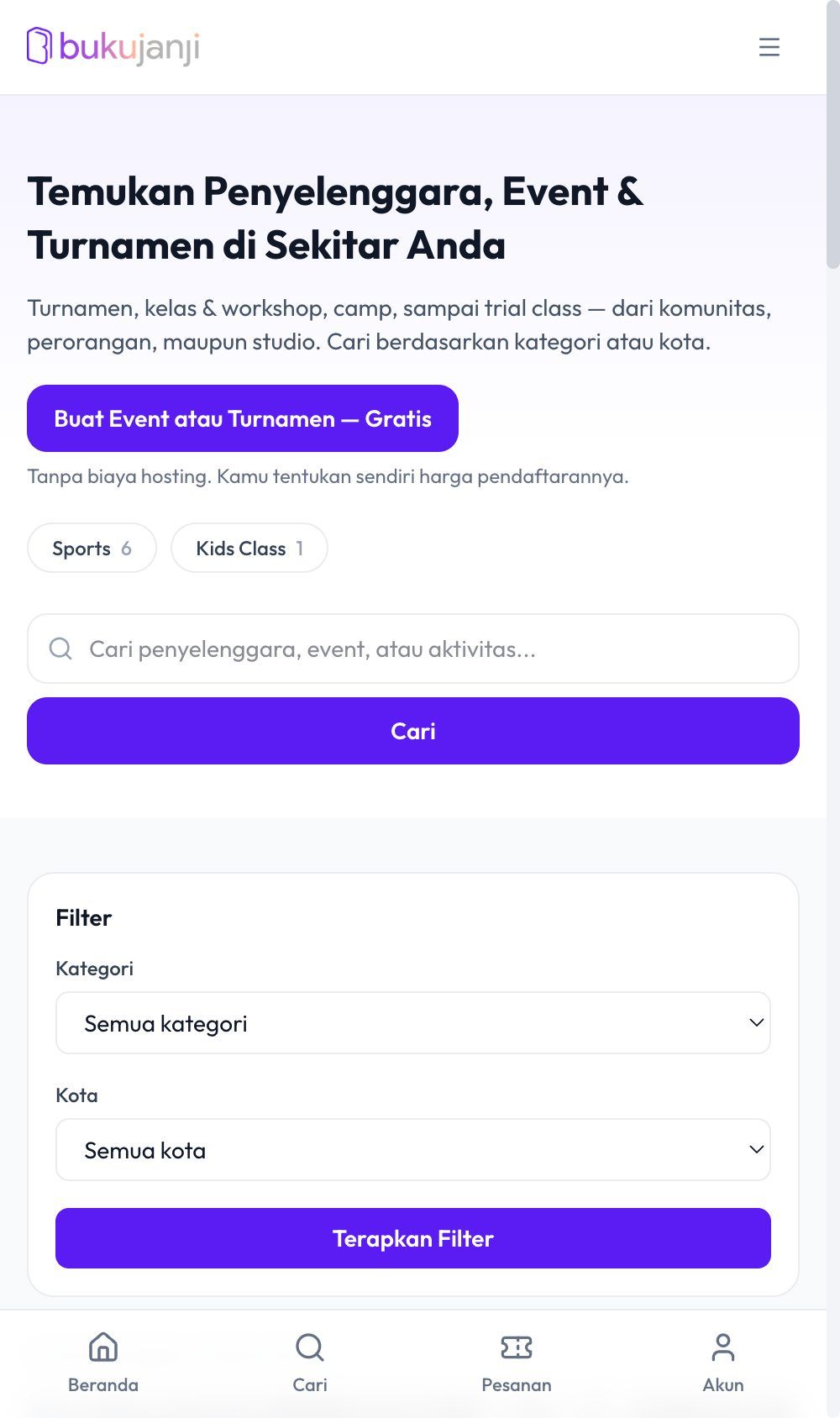
Open the Organizers page on Bukujanji and press “Create an Event or Tournament — Free”. If you are not signed in yet, you will be asked to sign in with your WhatsApp number or email; an OTP code is sent there.
No Bukujanji account yet? Enter your WhatsApp number, type your name, done; the account is created on the spot. Already created an organizer? The same button reads “Open Organizer Dashboard” and takes you straight in.
02
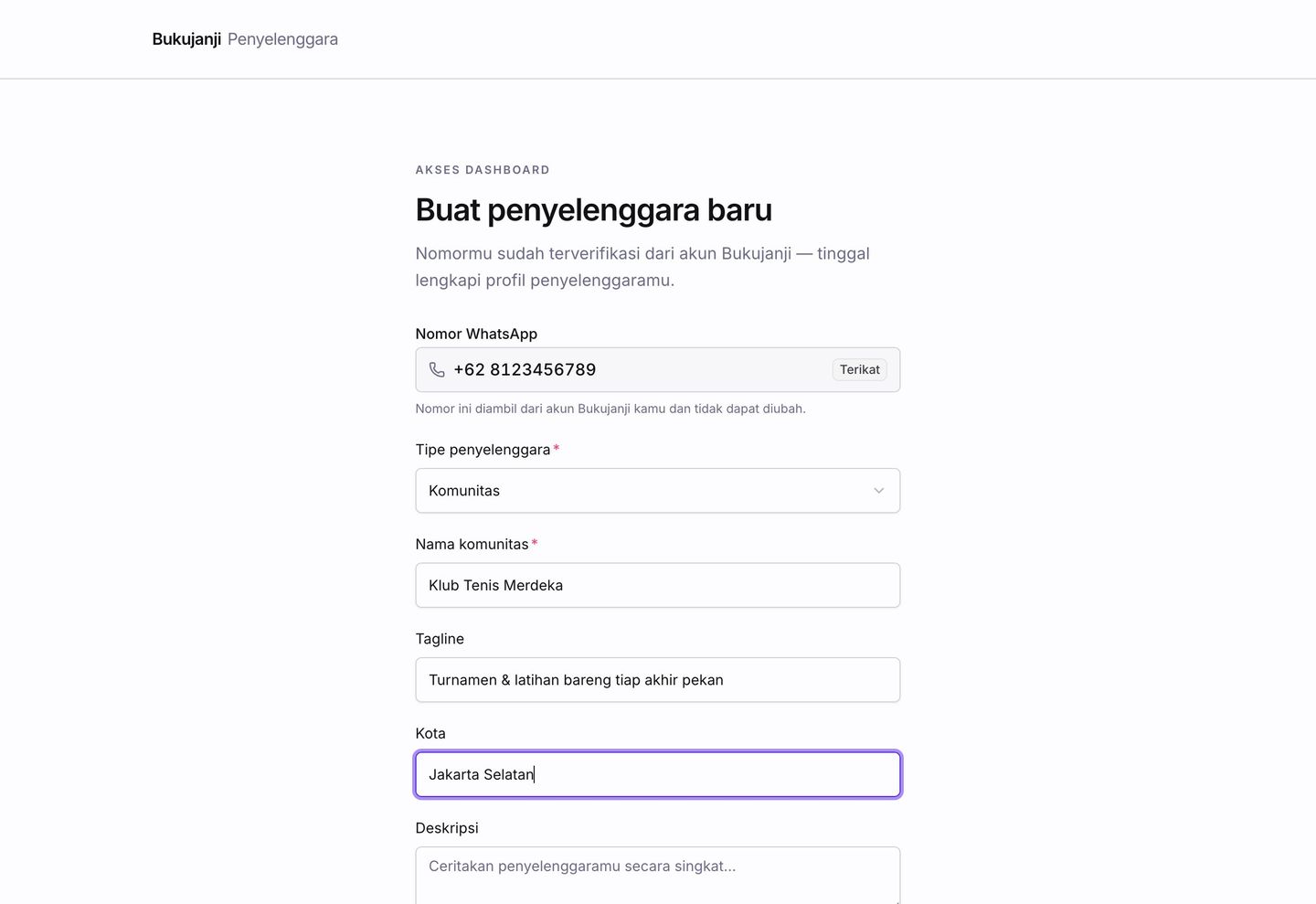
One short form. Your WhatsApp number comes from your account and cannot be changed here.
Tick the Terms of Service and Seller Agreement, then press “Register organizer”.
Profiles are reviewed first. The Bukujanji team checks new profiles, usually within 24 hours. Meanwhile you can prepare an event all the way; the Publish button starts working once the profile is approved. You are notified on WhatsApp.
03
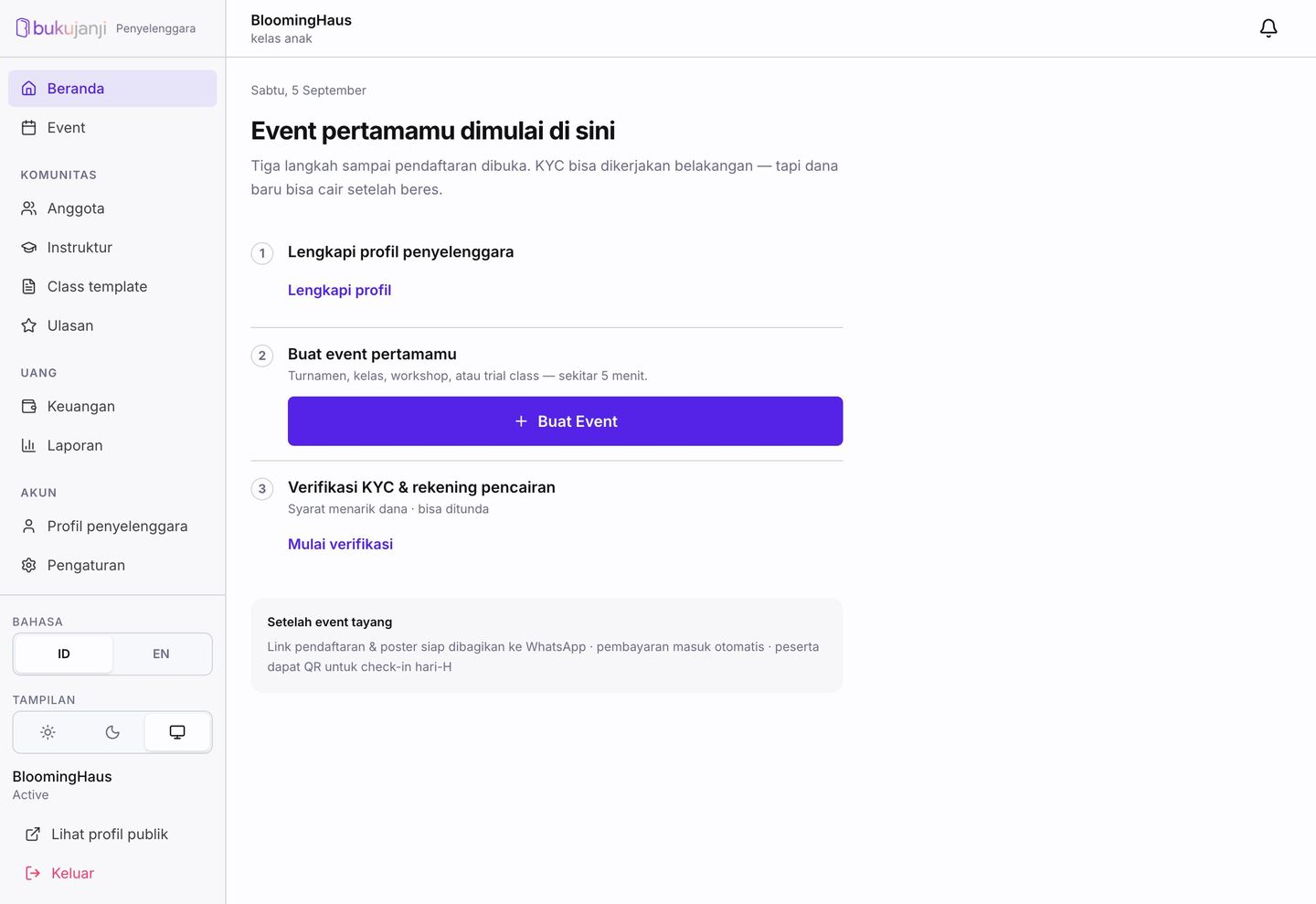
After registering you land in the dashboard. The first home screen shows three things to finish; only “Create Event” needs doing now.
Part B
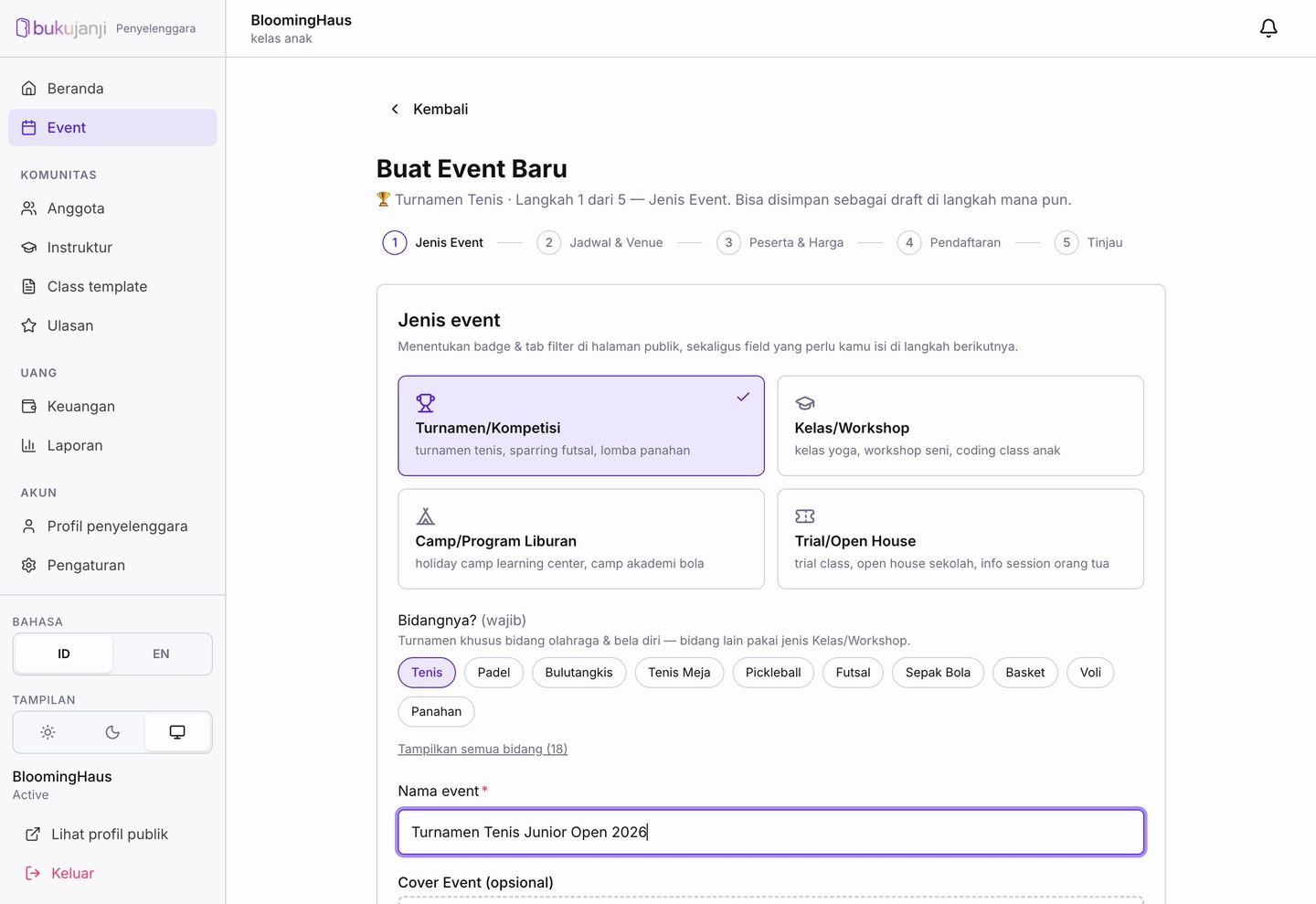
Every event type uses the same wizard. The example below is a junior tennis tournament; for classes, camps, or trial classes the steps are the same, only the divisions section does not appear. At any step you can press “Save draft” and continue later from the Events list.
04
If you have created events before, a “You often create” row appears at the top: one click fills the type and discipline at once.
05
Longer than a day? Press “Longer than a day? Enter duration in minutes”. For multi-day camps, create one event per day so attendance is recorded per day.
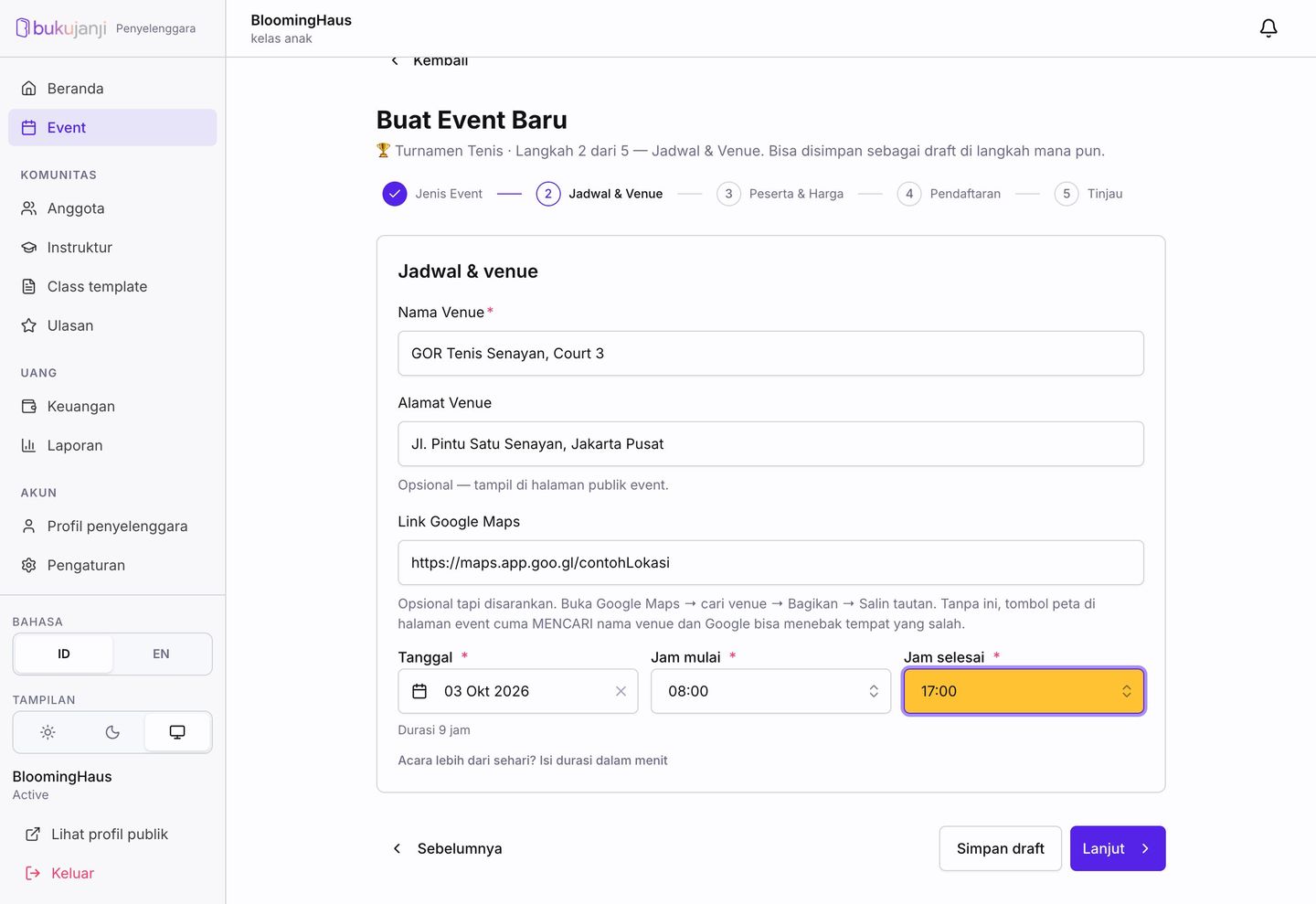
06
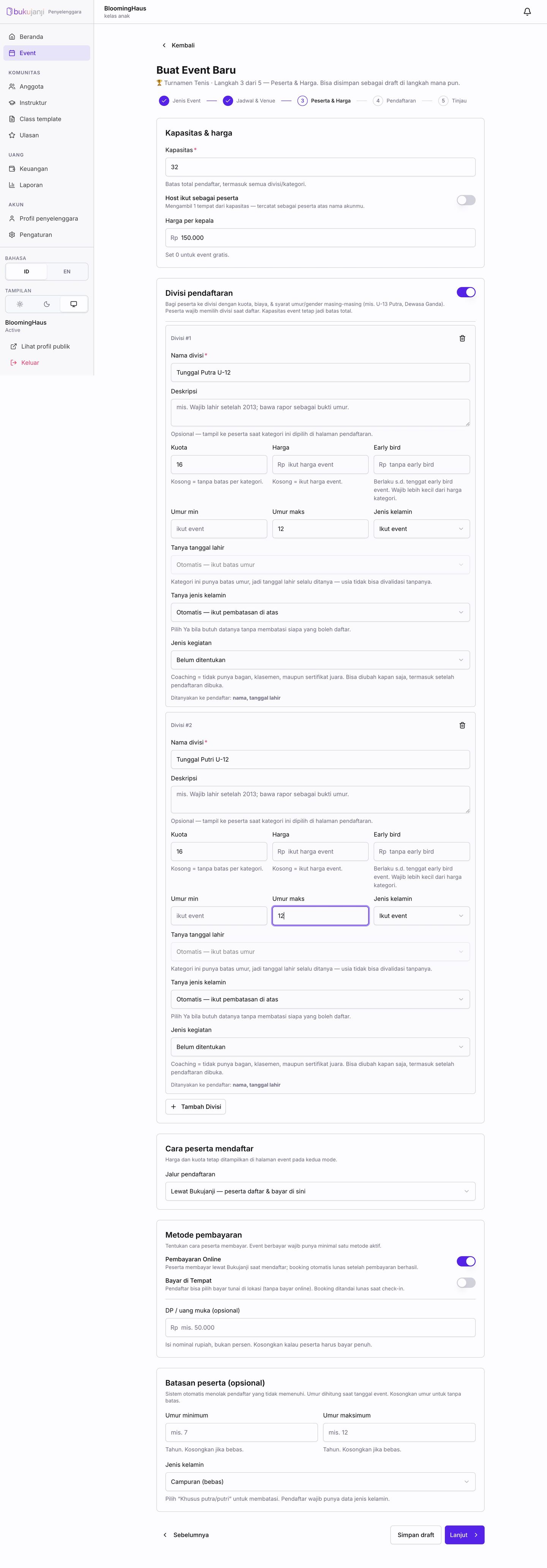
Tournaments only: Registration divisions. This section is already on once you pick Tournament. Add one row per competition event, for example “Boys Singles U-12” and “Girls Singles U-12”. Each division can have its own quota, price, early bird, and age limits. Press “Add division” for more rows. Participants pick their division when registering, and the same divisions feed the bracket later. Below it: how participants register (through Bukujanji with a form, payment, and QR check-in; or through WhatsApp, which only places a chat button to your number), payment methods (online and/or pay on site, optional deposit), and event-level age or gender limits. For classes and workshops the same section is called “Participant categories (optional)”: turn it on only if you need several ticket categories, such as Early Bird and Regular. Registration through WhatsApp requires a WhatsApp number on your organizer profile.
07
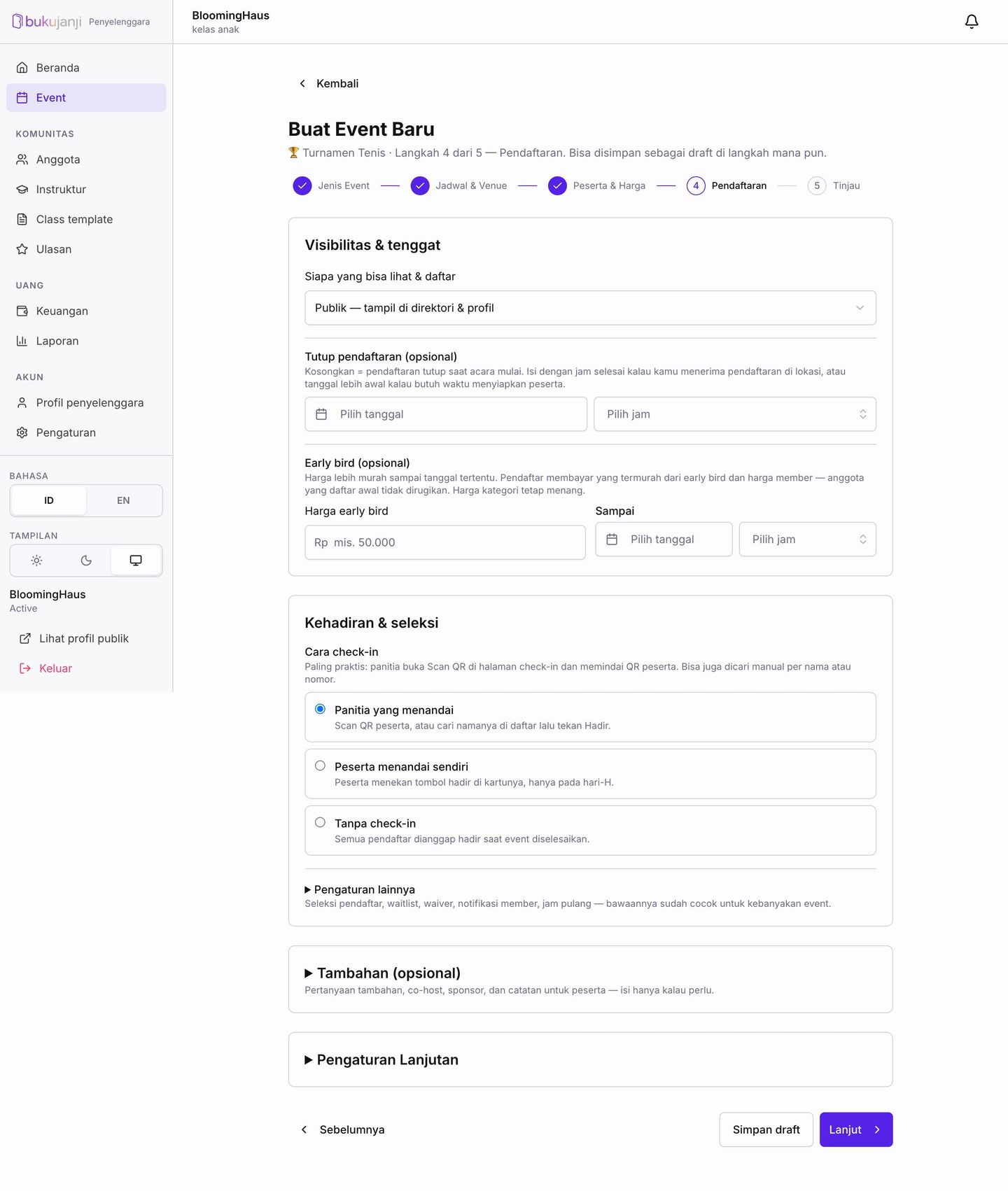
“More settings” (applicant screening, waitlist, waiver, member notification) and “Extras” (extra questions, co-hosts, sponsors, notes) are folded because the defaults suit most events. Open them only if needed.
08
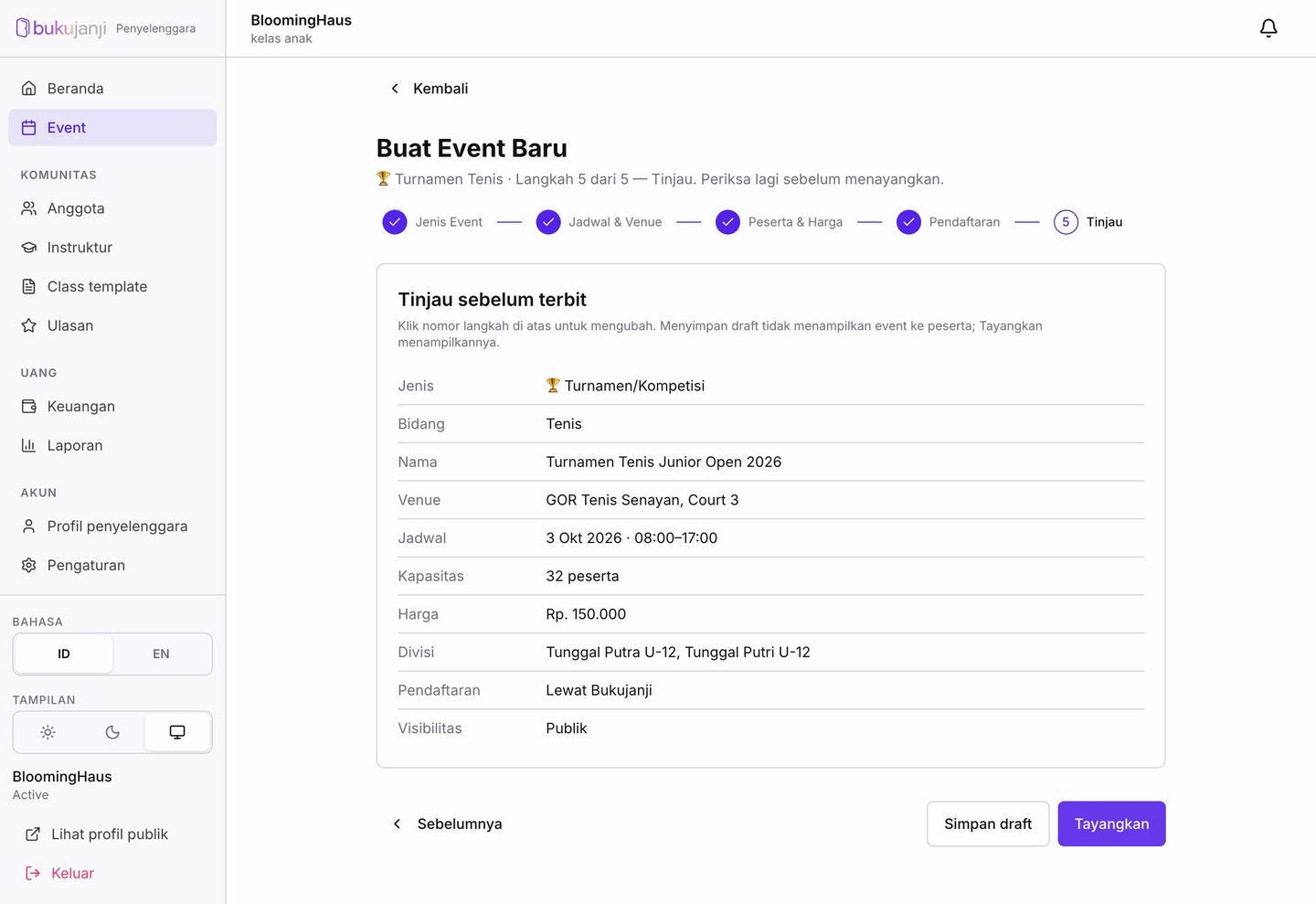
Check the summary. Click a step number above to change something.
Publish rejected? The three most common causes: the organizer profile is still under review, a public tournament has no discipline, or the schedule and capacity are incomplete. The message names what is missing, and the event stays saved as a draft.
Part C · Tournaments only
Registration, capacity, and payment live on the event. The three items below make it run as a tournament, and the event page walks you through them one by one.
09
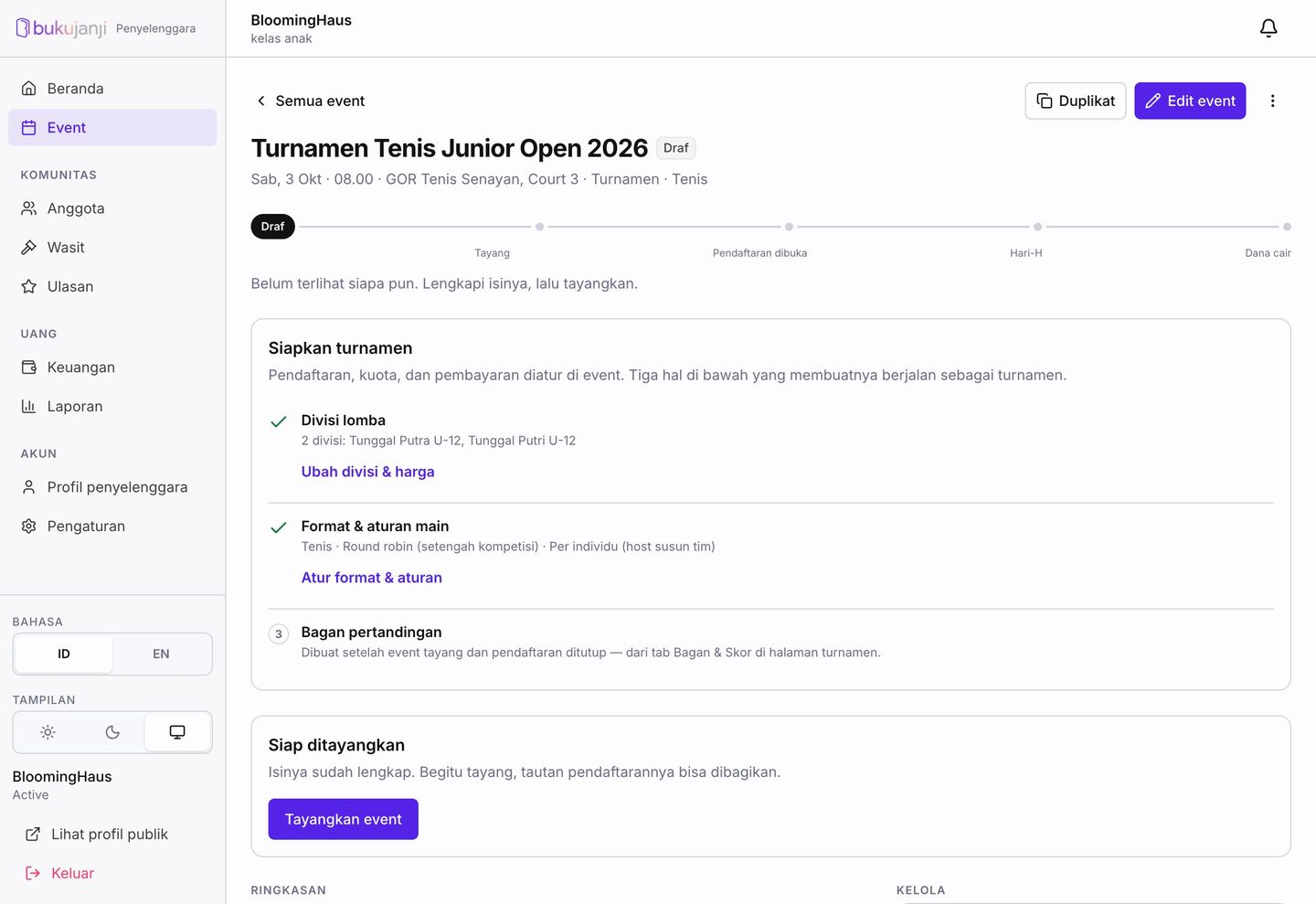
After saving or publishing you land on the event page. For tournaments, the “Set up the tournament” block sits at the top with three numbered steps:
The block disappears once all three are done. The same links are always available in the Manage panel on the right: “Prices & categories” and “Tournament setup”.
10
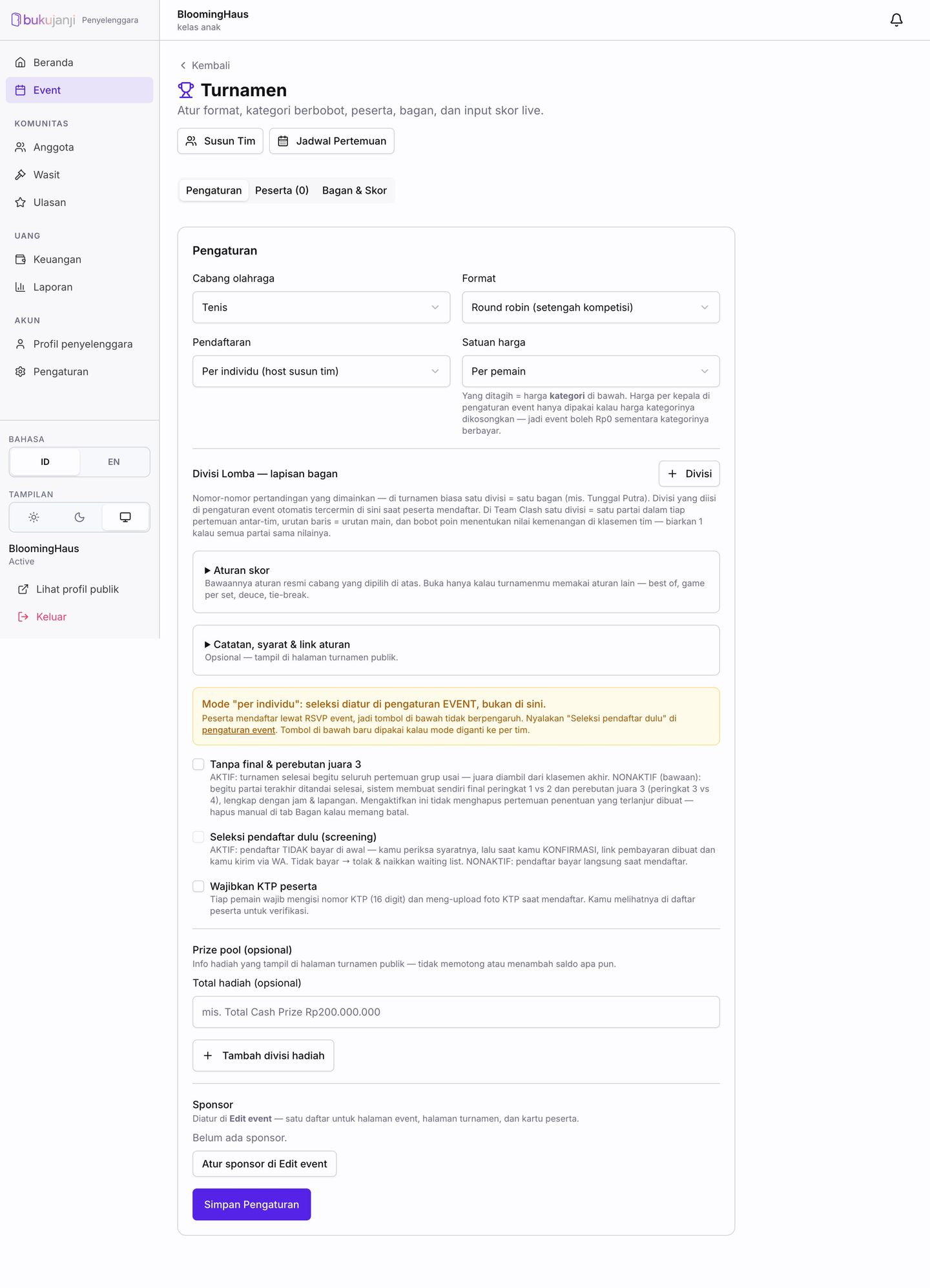
Press “Set format & rules” (or “Tournament setup” in the Manage panel). The Settings tab contains, from the top:
Finish with “Save settings”.
11
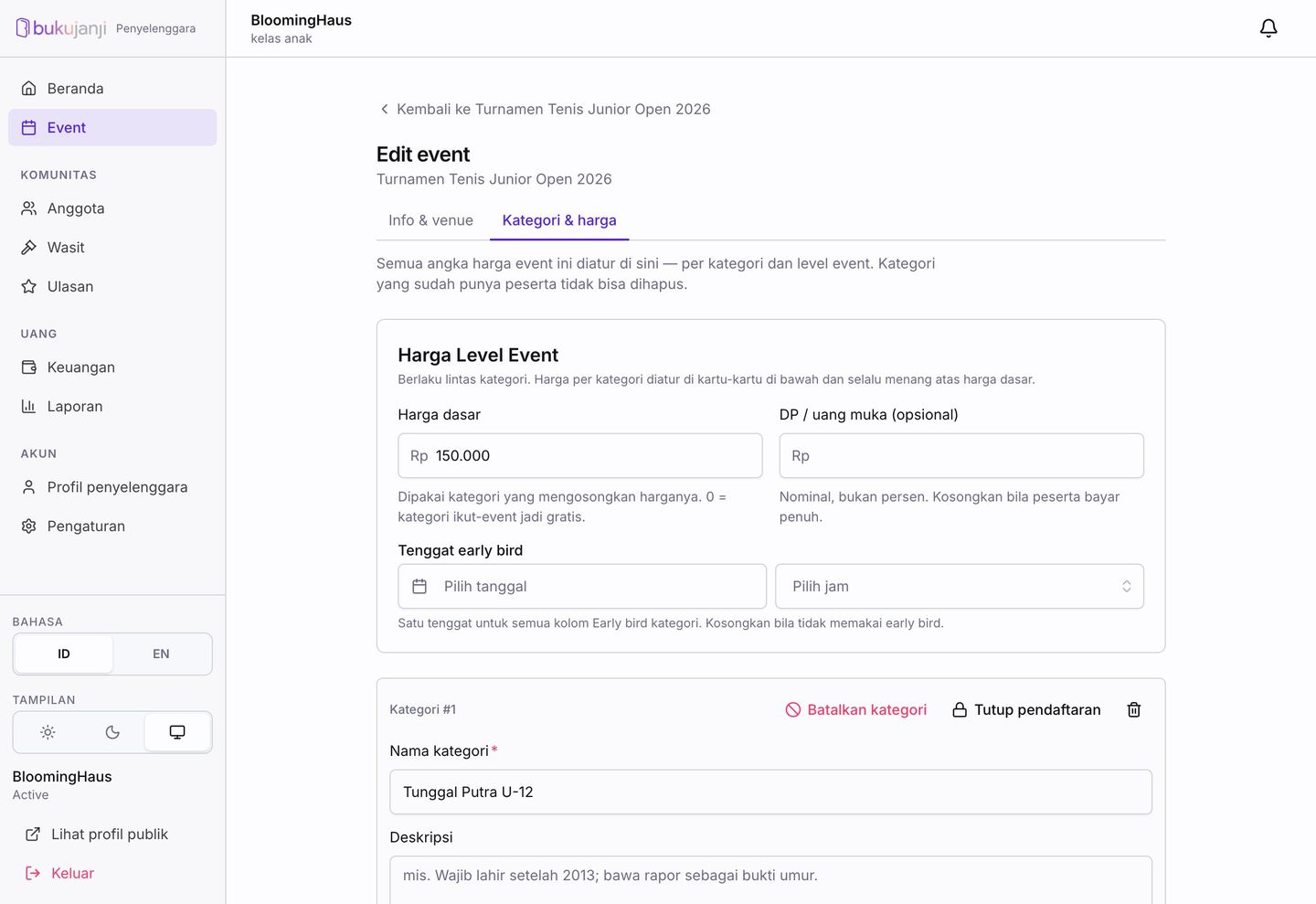
The “Categories & prices” page (second tab of Edit event) is the one place for every number: base price, deposit, early-bird deadline, then quota and price per division. A division that already has participants cannot be deleted, but its registration can be closed.
Part D
Once live, the event page changes role: from filling in to running.
12
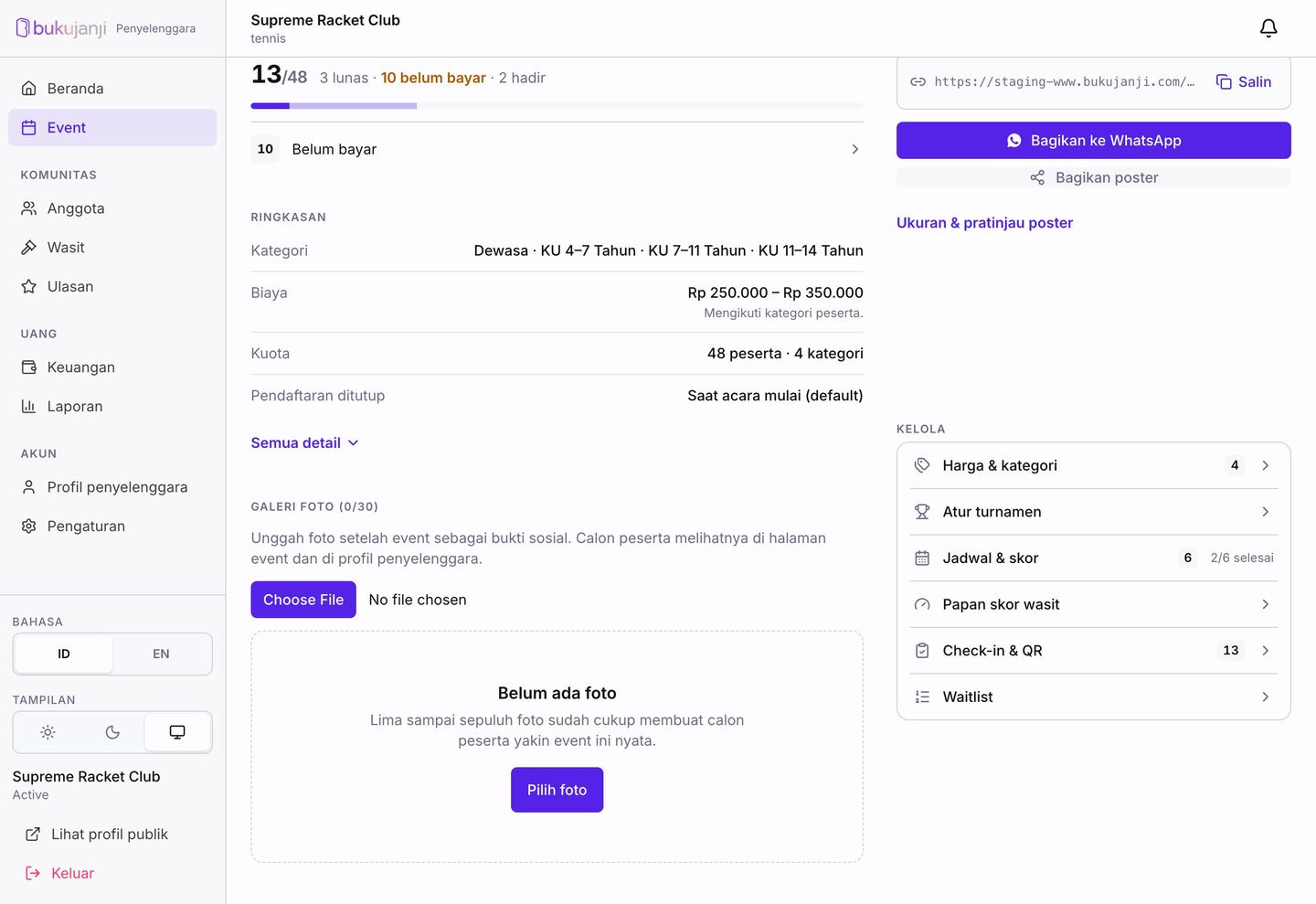
The Promotion block appears on a live event page.
For private events the link already carries the invite code; recipients can register right away.
13
None. For tournaments, participant categories are called divisions (Boys Singles U-12, Mixed Doubles, and so on). What you enter in wizard step 3 is what participants pick when registering and what the bracket uses.
The division price always wins. Price per head is only used by divisions that leave their price empty. If every division is paid, fill in price per head too, so the public page never shows “Free” before a participant picks a division.
Yes, through Edit event. Schedule, capacity, and venue cannot be emptied after going live, but they can be changed. A division that already has participants cannot be deleted.
A mode in step 3 that replaces the registration form with a chat button to your number. There is no invoice, participant list, or QR check-in on Bukujanji; you handle everything in WhatsApp. Suits small community meetups.
After you press “Complete event”. Funds move to your organizer balance and can be withdrawn to a KYC-verified bank account from the Finance menu.
A photo of the organizer owner’s ID card (KTP), a selfie holding it, the 16-digit ID number, and a bank account in the same name. Review takes 1–2 working days. Paid events can go live without KYC; only the payout needs it.
Open More actions → Cancel event. The event disappears from public pages, participants are notified with the reason you write, and everyone who paid is refunded in full automatically.
Two common causes: the organizer profile is still under review, or the event was created as Private. Private events open only through a link that carries the invite code.